
Last Updated on 24/10/2026
If you are looking for passwords on this computer, the short answer is that Windows does not keep them in one place. They are scattered across four separate stores, and each one opens differently. This guide covers all four, plus what happened to the passwords that used to live in Microsoft Authenticator.
Where Windows keeps your passwords: quick answer
| What you saved | Where it lives | How to open it |
|---|---|---|
| Website logins typed into Edge | Microsoft Password Manager | Edge → Settings → Passwords and autofill |
| Website logins typed into Chrome | Google Password Manager | chrome://password-manager/passwords |
| Network drives, Remote Desktop, some apps | Credential Manager | Start → search “Credential Manager” |
| Wi-Fi networks | Wi-Fi profiles | Command Prompt, netsh |
| Passkeys (not passwords) | Windows Hello | Settings → Accounts → Passkeys |
One thing to know before you start: every method below asks you to prove who you are before it reveals anything. You will be prompted for your Windows PIN, fingerprint, or account password. This is deliberate. Being signed in to a computer is not the same as being allowed to read the passwords on it.
Passwords stored on this computer: the four places to look
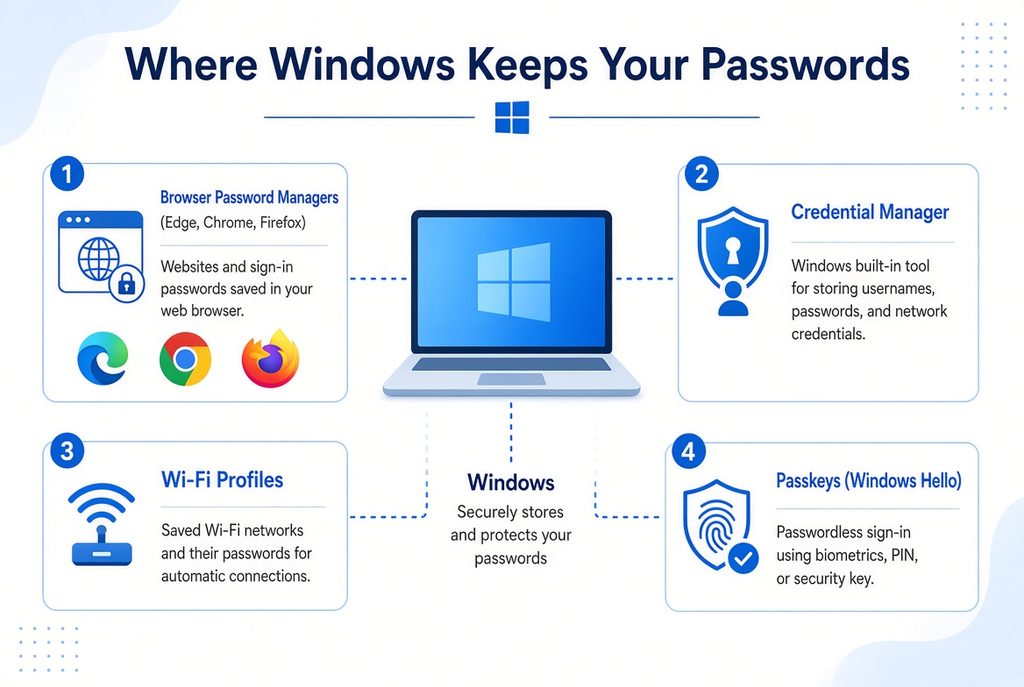
Most people only check their browser and conclude the password is gone. In practice passwords stored on this computer fall into four buckets, and they do not talk to each other:
- Browser-saved website logins. Anything you clicked “Save password” on. These belong to the browser, not to Windows, so switching browsers leaves them behind.
- Windows credentials. Network shares, mapped drives, Remote Desktop connections, and older desktop apps. Windows stores these itself, in Credential Manager.
- Wi-Fi network keys. Stored per network profile, separately from everything else.
- Passkeys. Not passwords at all, but they sit in the same mental box for most people. Stored by Windows Hello and tied to this specific device.
If a password is missing, it is almost always because you are looking in the wrong bucket.
How to see passwords on this computer with Credential Manager
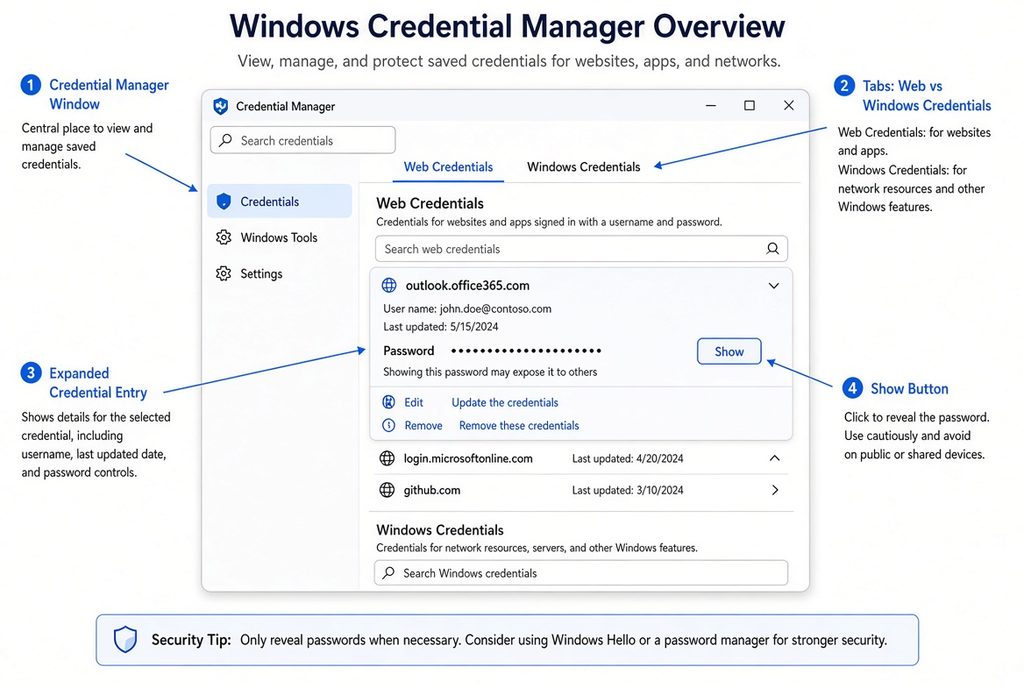
Credential Manager is the Windows-native vault. It is the one most people never open.
- Click Start and type Credential Manager, then open it
- You will see two tabs: Web Credentials and Windows Credentials
- Click any entry to expand it
- Next to the hidden password, click Show
- Enter your Windows account password or PIN to confirm
Web Credentials holds logins saved by Internet Explorer and some Windows apps. On a modern machine this tab is often empty, which is normal.
Windows Credentials is the interesting one. This is where network drive logins, Remote Desktop credentials, and old application passwords accumulate — sometimes for years, including for servers that no longer exist. It is worth reading through once.
Passwords saved to this computer in Microsoft Edge
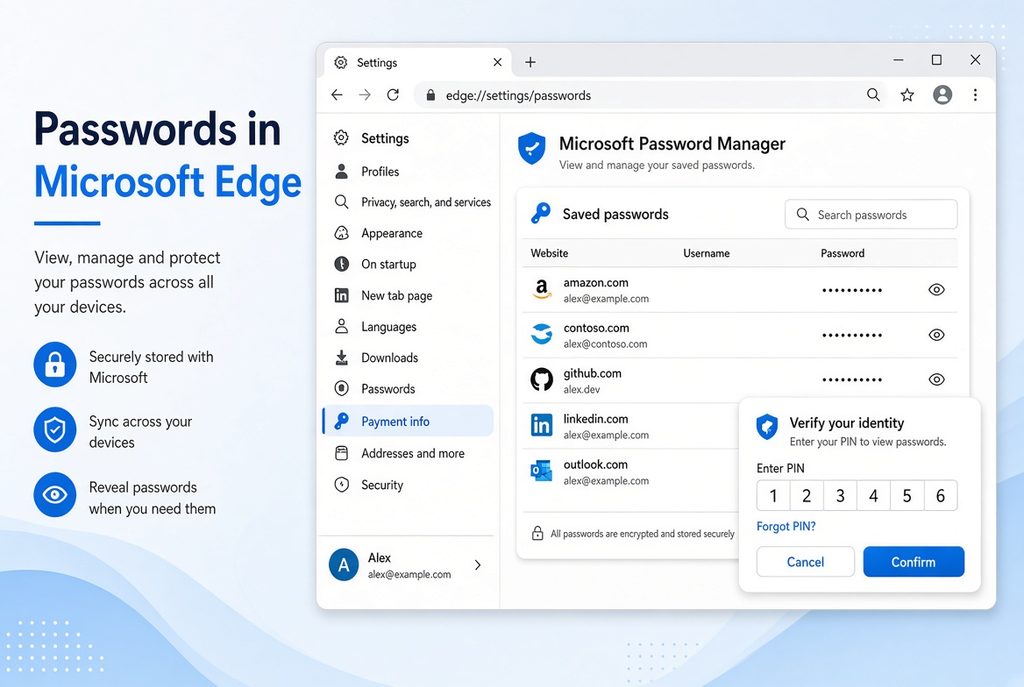
If you use Edge, your website logins are in Microsoft Password Manager.
- Open Edge
- Go to Settings → Passwords and autofill → Microsoft Password Manager
- Find the site in the list
- Click the eye icon to reveal the password, and confirm with your Windows PIN or password
Two things Microsoft points out that catch people off guard:
- Password Manager only works on a personal account profile. If you are signed in to Edge with a work or school account, your IT administrator may have restricted or disabled it.
- Changing a password here does not change it on the website. Editing the entry in Edge only updates what Edge remembers. The site still expects the old one until you change it there too.
Passwords saved in Edge sync to your Microsoft account, so they follow you to any device where you sign in to Edge — which also means they are not strictly “on this computer” at all.
Saved passwords on this laptop in Chrome and Firefox
Browsers each run their own vault. Having Chrome and Edge on the same machine means two separate sets of saved passwords on this laptop.
Google Chrome:
- Type
chrome://password-manager/passwordsin the address bar and press Enter - Click the site, then the eye icon
- Confirm with your Windows PIN or password
Mozilla Firefox:
- Type
about:loginsin the address bar and press Enter - Select the site and click the eye icon
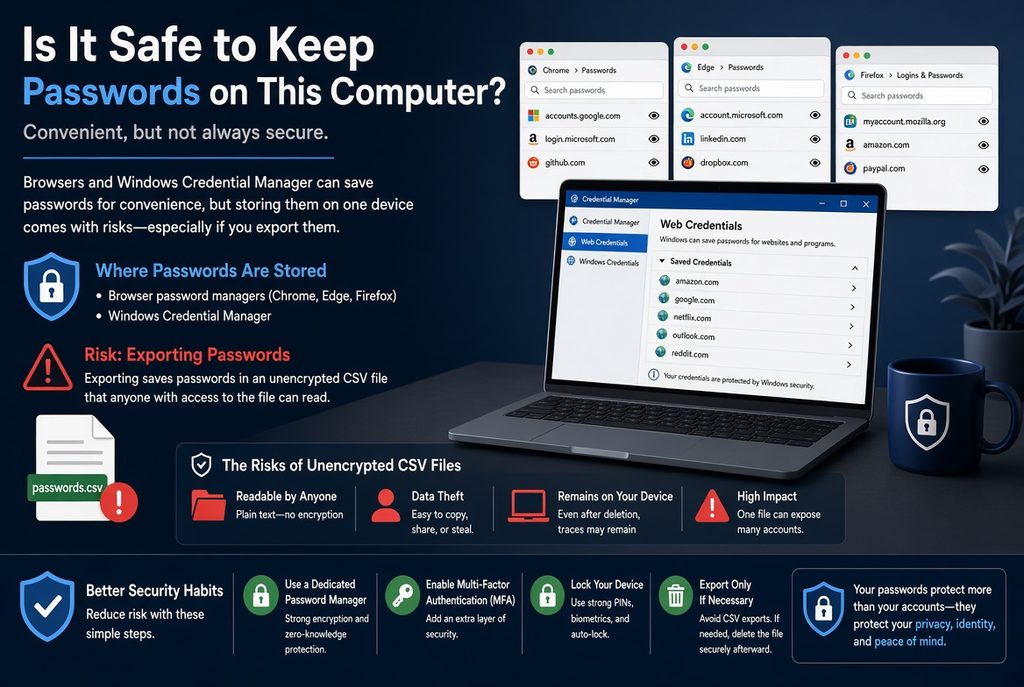
Both browsers also have an export option that writes everything to a plain CSV file. That file is completely unencrypted — anyone who opens it reads every password. Use it only to move into another password manager, and delete it the moment you are done.
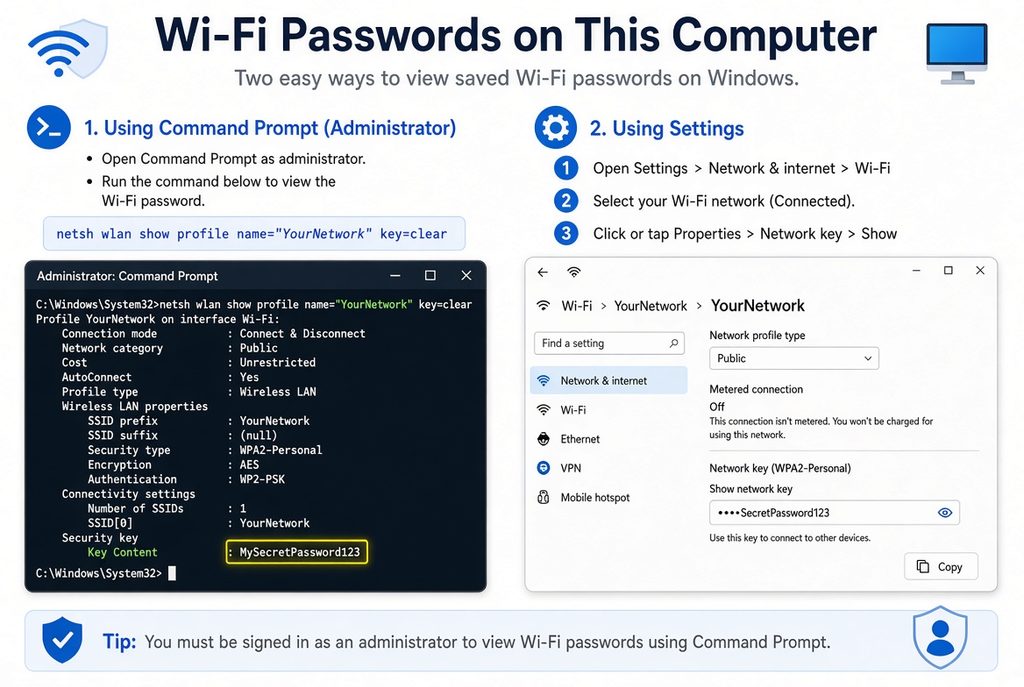
Wi-Fi passwords on this computer
Wi-Fi keys live in their own store. To see the password for a network this computer has connected to before:
- Click Start, type cmd, right-click Command Prompt and choose Run as administrator
- Run
netsh wlan show profilesto list every saved network - Run
netsh wlan show profile name="NETWORK NAME" key=clear - Read the value next to Key Content
Replace NETWORK NAME with the exact name from step 2, keeping the quotation marks. This only works for networks this machine has already joined — it cannot reveal a password it never had.
What happened to passwords in Microsoft Authenticator
If you are hunting for passwords that used to be in Microsoft Authenticator, they are not missing. Microsoft removed the feature.
| When | What changed |
|---|---|
| July 2025 | Autofill stopped working in Authenticator; stored payment information deleted |
| 1 August 2025 | Deadline to export saved passwords |
| August 2025 | Saved passwords and generated passwords no longer accessible in Authenticator |
Microsoft moved everyone to Edge. Passwords that had synced to your Microsoft account are reachable by signing in to Edge; generated password history was not carried over. Authenticator itself still works perfectly well for two-factor codes — only the password features were retired.
If you never exported and never used Edge, check Microsoft Password Manager in Edge first before assuming the passwords are gone.
Passkeys: where Windows keeps them
Passkeys are gradually replacing passwords, and they are stored somewhere different again.
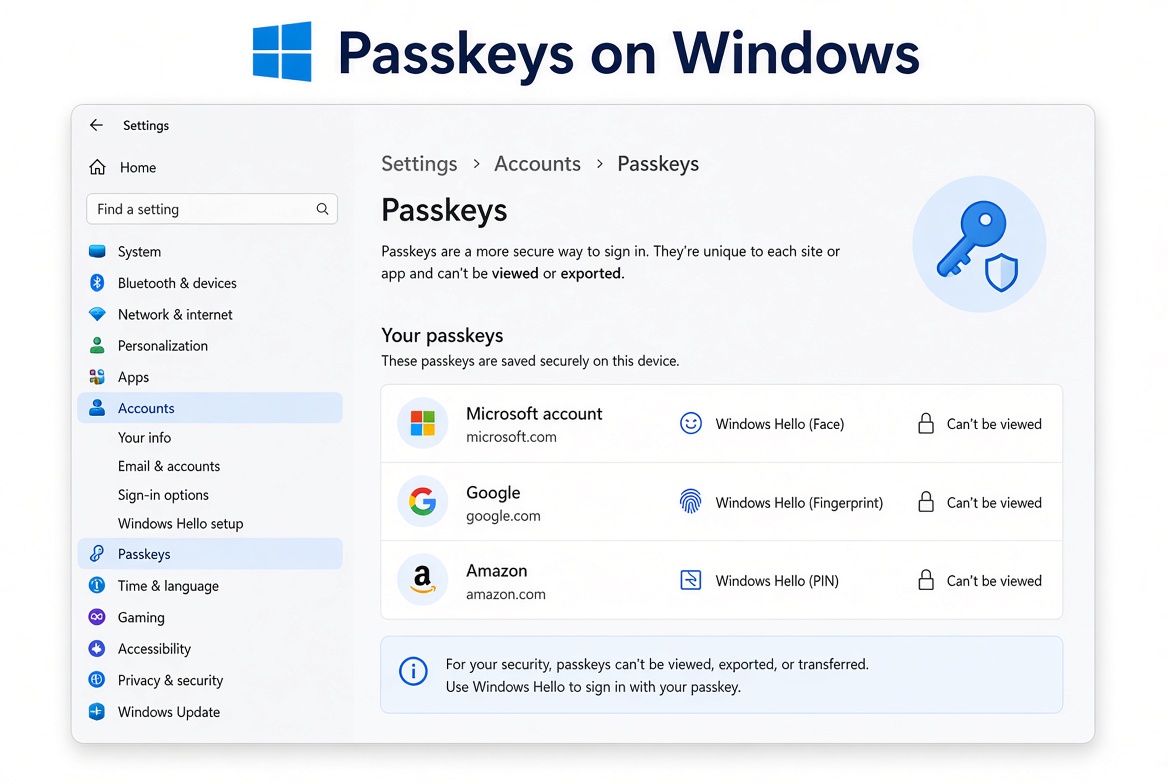
In Windows 11, go to Settings → Accounts → Passkeys → Advanced options.
A passkey is not a secret you can read. There is no “show” button, because there is nothing to copy — the private half never leaves the device and cannot be typed, phished, or reused somewhere else. You can see which sites have passkeys on this computer, and delete them, but you cannot view them. That is the point of the design.
How to delete passwords on this computer
Selling the machine, passing it on, or just clearing out old entries:
- Credential Manager: expand the entry, click Remove
- Edge: Settings → Passwords and autofill → Microsoft Password Manager → three-dot menu next to the entry → Delete
- Chrome:
chrome://password-manager/passwords→ select the site → Delete - Wi-Fi: Settings → Network & internet → Wi-Fi → Manage known networks → Forget
- Passkeys: Settings → Accounts → Passkeys → Advanced options → delete per site
If you are handing the computer to someone else, deleting entries one by one is not enough. Passwords that synced to your Microsoft or Google account will come straight back the moment anyone signs in to that account. Sign out of the browser and remove your account from Windows, or do a full reset.
Is it safe to keep passwords on this computer?
Browser password managers encrypt what they store and require your Windows credentials to reveal anything. For most people that is a real improvement over the alternative, which is reusing one password everywhere because it is the only one they can remember.
The risks worth knowing:
- Anyone who knows your Windows PIN can read all of it. The vault is only as strong as the lock on your account
- Browser syncing means “this computer” is misleading. If your Microsoft or Google account is compromised, every synced password goes with it, not just the ones on this machine
- Export files are plain text. A forgotten CSV in your Downloads folder undoes everything else
Three things that genuinely help: turn on two-factor authentication for the Microsoft or Google account your passwords sync to; use a PIN or Windows Hello rather than no sign-in at all; and switch to passkeys on sites that offer them, since a passkey cannot be read off the machine even by someone sitting in front of it.
Frequently asked questions
Where are passwords on this computer stored in Windows 11?
In four separate places: Credential Manager for Windows and network credentials, Microsoft Password Manager in Edge for website logins, each browser’s own vault for logins saved there, and Wi-Fi profiles for network keys. There is no single list that shows all of them.
Can I see passwords stored on this computer without the Windows password?
No. Credential Manager, Edge, and Chrome all require your Windows PIN, fingerprint, or account password before revealing anything. This is a deliberate protection, not a bug.
Why do my passwords appear on another device?
Because browser password managers sync. Passwords saved in Edge follow your Microsoft account; passwords saved in Chrome follow your Google account. They are stored on this computer and in the cloud at the same time.
Where did my Microsoft Authenticator passwords go?
Microsoft retired the password features. Autofill stopped in July 2025, and saved passwords became inaccessible in Authenticator in August 2025. Passwords that had synced to your Microsoft account can be reached by signing in to Edge.
How do I see Wi-Fi passwords on this computer?
Open Command Prompt as administrator and run netsh wlan show profile name="NETWORK NAME" key=clear. The password appears next to Key Content. This works only for networks the computer has connected to before.
Are passkeys stored with my passwords?
No. Passkeys are in Settings → Accounts → Passkeys → Advanced options, and they cannot be viewed at all — only listed and deleted. The secret half never leaves the device.
How do I remove all saved passwords before selling my laptop?
Deleting entries individually is not enough, because synced passwords return when anyone signs back into the account. Sign out of your browser, remove your account from Windows, and preferably perform a full factory reset.
Related guides: