
Last Updated on 19/06/2026 by TinHN Editor
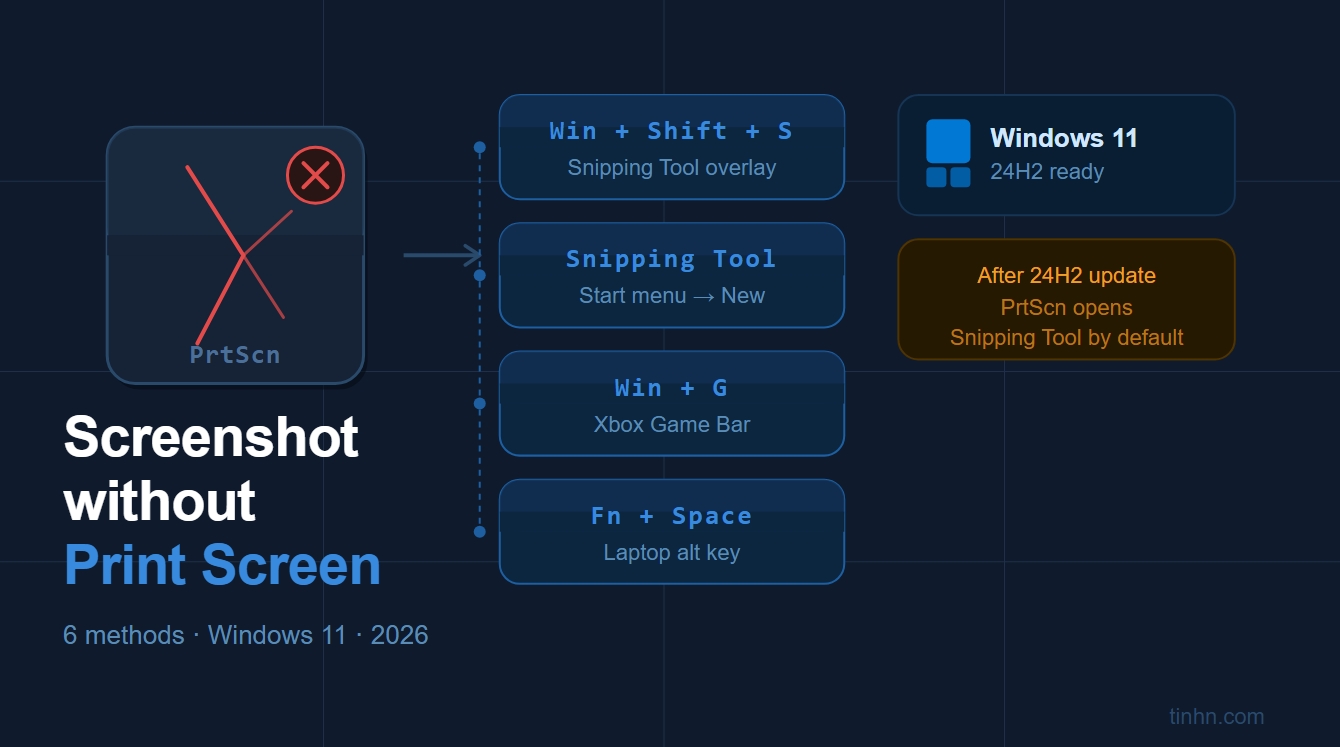
Print Screen key missing or broken on Windows 11? Here are 6 methods to screenshot without Print Screen Key.
Why Your Print Screen Key May Not Be Working in 2026
Before trying workarounds, check this first: Windows 11 version 24H2 changed what the PrtScn key does by default.
After the 24H2 update, pressing PrtScn no longer silently copies the full screen to your clipboard. Instead, it opens the Snipping Tool capture overlay — and if you close that overlay without doing anything, nothing gets saved. Many users think their key is broken when it is actually working exactly as intended.
To restore the old behavior (full-screen copy to clipboard):
- Open Settings → Accessibility → Keyboard
- Find “Use the Print Screen key to open screen capture”
- Toggle it Off
If the key still does nothing after that, or if your laptop simply does not have a PrtScn key at all, the six methods below all work without it.
Method 1: Win + Shift + S (Fastest — Works on All Windows 11 Laptops)
Best for: Quick region or full-screen captures, everyday use
Press Windows key + Shift + S together. Your screen dims and a small toolbar appears at the top with four capture modes:
- Rectangle — drag to select any area
- Freeform — draw any shape
- Window — click a specific window
- Full screen — captures everything instantly
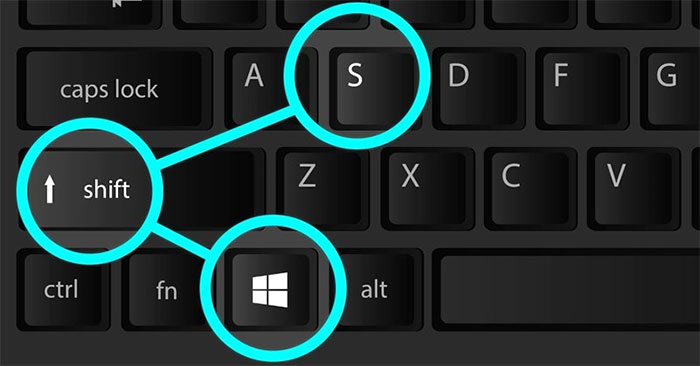
The screenshot is copied to your clipboard. A notification appears in the bottom-right corner — click it to open Snipping Tool and save as a PNG file.
This shortcut works regardless of whether your PrtScn key exists or functions. It is the most reliable everyday alternative.
Method 2: Snipping Tool (Built-In App, No Key Required)
Best for: Delayed captures, menus that disappear on click, annotations
Open Snipping Tool from the Start menu (search “Snipping Tool”). Click New to start a capture.
The key advantage over Win+Shift+S: the Delay feature. Set a 3- or 10-second delay, then set up whatever you need on screen (an open dropdown, a tooltip, a right-click menu) before the capture fires automatically.
In Windows 11, Snipping Tool also supports screen recording — click the video camera icon to record a region of your screen.

Method 3: Win + PrtScn Alternative — Win + Fn + Space
Best for: Laptops without a dedicated PrtScn key (many ultrabooks and thin-and-light models)
Many compact laptops print PrtScn as a secondary label on another key (often Insert, End, or a function key). The combination is usually Fn + PrtScn or Fn + Windows + Space.
The exact Fn combo varies by manufacturer. If none of those work, the on-screen keyboard method in Method 4 is the guaranteed fallback.
Method 4: On-Screen Keyboard (Works When the Physical Key Is Damaged)
Best for: Broken or water-damaged PrtScn key
- Press Windows + Ctrl + O to open the On-Screen Keyboard
- Click the PrtScn button on-screen with your mouse
- Open Paint (Win + R → type
mspaint) and press Ctrl + V to paste
This uses the same system screenshot function as the physical key, just triggered by mouse click.
Method 5: Xbox Game Bar (Win + G)
Best for: Capturing games, videos, or anything that blocks the regular screenshot shortcuts
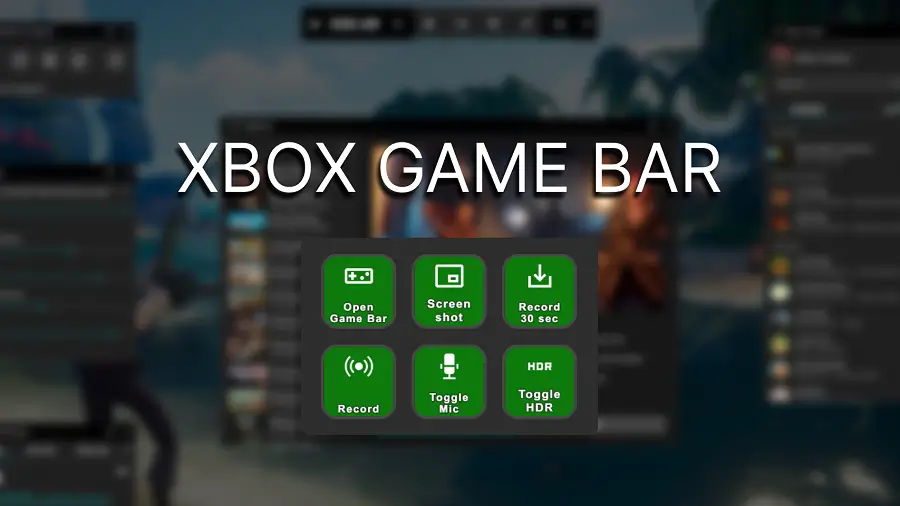
Press Windows + G to open the Game Bar overlay. Click the camera icon in the Capture widget to take a screenshot. Screenshots save automatically to Videos → Captures folder.
Game Bar works in most apps and is especially useful for content that disables or interferes with the standard PrtScn shortcut.
Method 6: Microsoft Edge Built-In Screenshot (Web Pages Only)
Best for: Capturing a full web page including content below the fold
In Microsoft Edge, press Ctrl + Shift + S or go to the three-dot menu → Screenshot. You can capture a visible area or a full page — even content you have to scroll to see.
This only works within the Edge browser window and is not a system-wide screenshot tool.
Which Method Should You Use?
| Situation | Best method |
|---|---|
| Key missing on ultrabook | Win + Shift + S (Method 1) |
| PrtScn seems broken after Windows update | Check 24H2 setting first, then Method 1 |
| Need to capture a dropdown menu | Snipping Tool with Delay (Method 2) |
| Key physically damaged | On-Screen Keyboard (Method 4) |
| Gaming or video capture | Game Bar (Method 5) |
| Full web page screenshot | Edge screenshot (Method 6) |
Frequently Asked Questions
Why does my Print Screen key open Snipping Tool instead of copying to clipboard?
Windows 11 version 24H2 changed the default behavior of the PrtScn key. Go to Settings → Accessibility → Keyboard and toggle off “Use the Print Screen key to open screen capture” to restore the old clipboard behavior.
My laptop has no PrtScn key at all — what do I do?
Use Win + Shift + S. It works on every Windows 11 laptop regardless of keyboard layout, requires no additional software, and gives you all four capture modes.
Where do screenshots go on Windows 11?
It depends on the method. Win + PrtScn saves to Pictures → Screenshots as a PNG. Win + Shift + S copies to the clipboard (paste with Ctrl+V, or click the notification to save). Game Bar saves to Videos → Captures.
Can OneDrive interfere with Print Screen?
Yes. OneDrive can take over the PrtScn shortcut to save screenshots directly to the cloud. If your key seems unresponsive, right-click the OneDrive icon in the taskbar → Settings → Backup, and disable “Automatically save screenshots I capture to OneDrive.”
Does Win + Shift + S work on Windows 10?
Yes. The shortcut works on Windows 10 and Windows 11. On Windows 10 it opens Snip & Sketch instead of the updated Snipping Tool, but the four capture modes are identical.
For a complete overview of all screenshot shortcuts and methods on Windows, see our guide: How to Screenshot on Windows 11 and 10 →