
Last Updated on 14/04/2026 by TinHN Editor
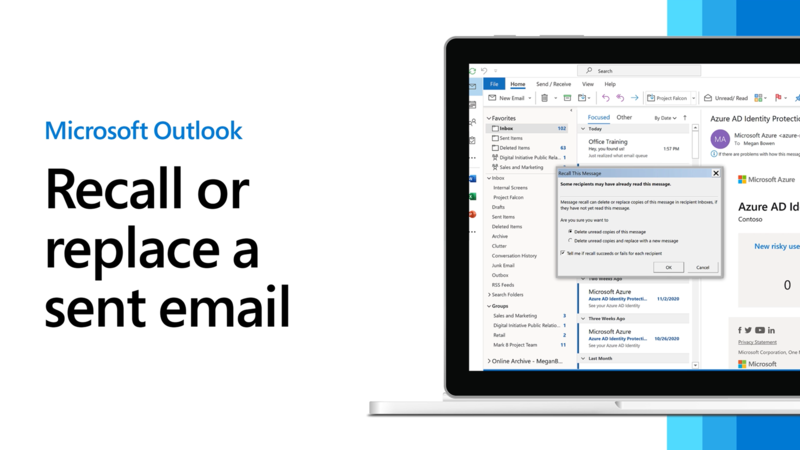
Have you ever clicked Send on an email only to realize moments later that you made a mistake — wrong recipient, typo in the attachment, or embarrassing content? Microsoft Outlook’s recall email feature can help you retract or replace a sent message before the recipient reads it.
In this comprehensive guide, you’ll learn exactly how to recall an email in Outlook, the strict requirements for it to work, step-by-step instructions for different versions (desktop, new Outlook, and web), why it often fails, and better alternatives to avoid email regrets.
What Does Recalling an Email in Outlook Mean?
The Recall feature in Outlook allows you to:
- Delete unread copies of the message from recipients’ inboxes.
- Delete and replace the original with a corrected version.
When successful, the original email disappears from the recipient’s inbox (if unread), and they may receive a notification that you recalled it.
Important note: This is not the same as the “Undo Send” delay feature (which gives you a few seconds to cancel before the email actually leaves your outbox).
Key Requirements: When Can You Recall an Email in Outlook?
Email recall in Outlook is very limited and only works under specific conditions:
- Both sender and recipient must use Microsoft 365 work or school accounts (or Microsoft Exchange) in the same organization.
- The email must still be unread by the recipient.
- The message must remain in the recipient’s Inbox (not moved by rules or filters).
- The recipient should be using the Outlook desktop app (recall often fails with web, mobile, or other email clients).
- You must be using an Exchange-based account — it does not work with POP, IMAP, Gmail, Outlook.com personal accounts, or external domains.
Recall will NOT work if:
- Sent to Gmail, Yahoo, Hotmail, or any external email address.
- The recipient has already opened the message.
- Inbox rules automatically moved the email.
- The message is protected by Azure Information Protection.
- You’re using a personal Outlook.com account or non-Exchange setup.
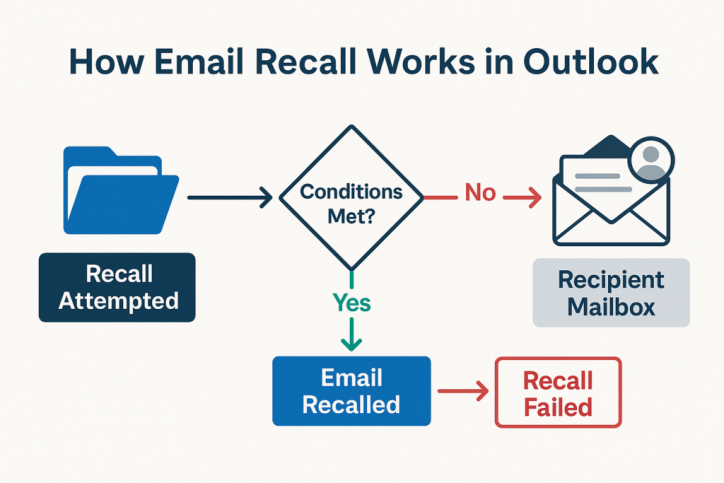
If these conditions aren’t met, the recipient may still see the original email and receive a separate “recall notification” email, which can sometimes draw more attention to your mistake, according to Microsoft.
How to Recall an Email in Outlook Desktop (Classic Outlook for Windows)
This is the most common method for traditional Outlook users.
Step-by-Step Instructions:
- Open Microsoft Outlook on your Windows computer.
- Go to the Sent Items folder in the left navigation pane.
- Double-click the email you want to recall to open it in a separate window (do not use the reading pane).
- In the open message window:
- Go to the File tab → Info.
- Click Resend or Recall → Recall This Message… Alternative ribbon method (Message tab):
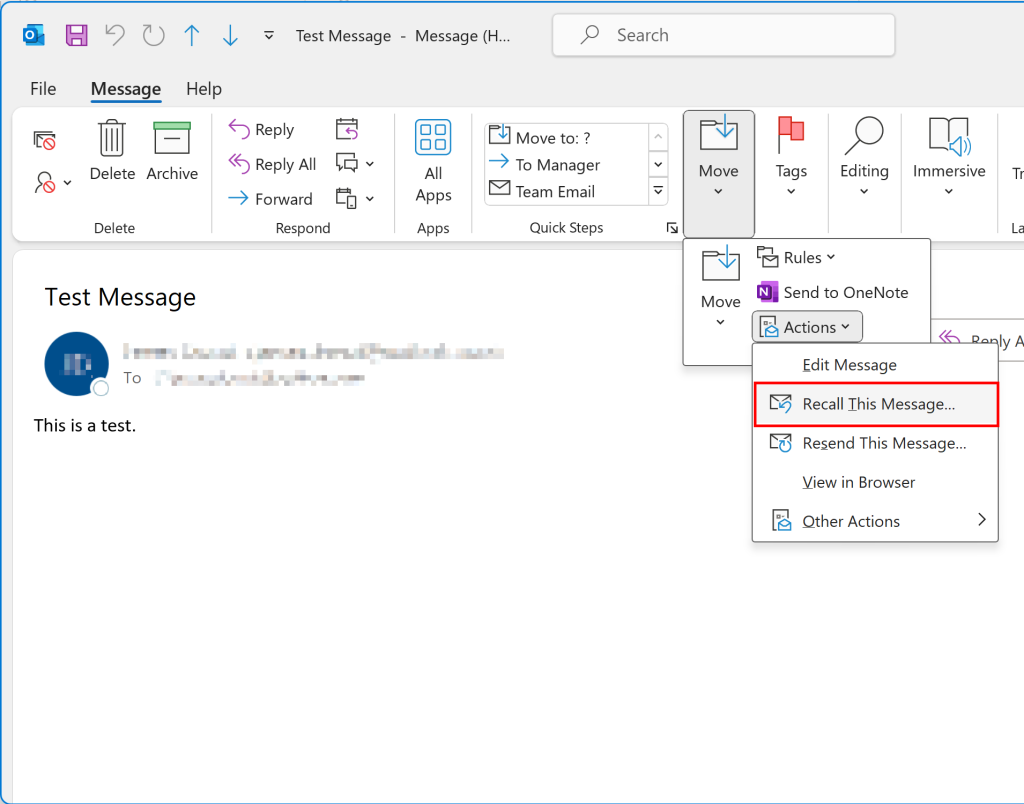
- Click the Message tab.
- In the Move group, click Actions (or the three dots … in simplified ribbon).
- Select Recall This Message.
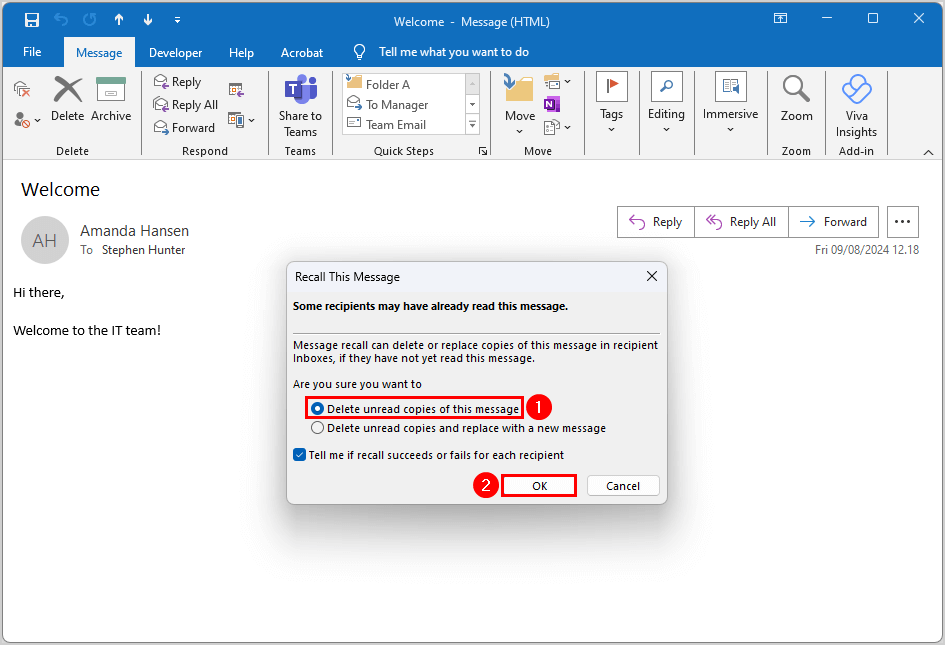
- In the Recall This Message dialog box, choose one of these options:
- Delete unread copies of this message (simple recall).
- Delete unread copies and replace with a new message (recall + send corrected version).
- Check the box “Tell me if recall succeeds or fails for each recipient” (recommended).
- Click OK.
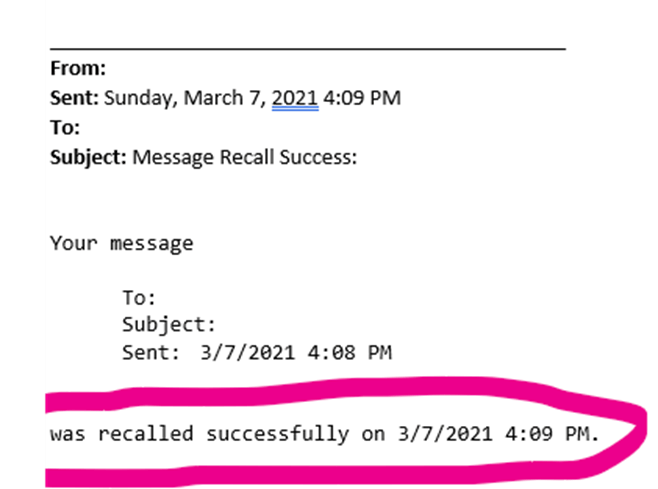
You will receive a Message Recall Report in your inbox shortly, showing the status (success, pending, or failed) for each recipient.
How to Recall an Email in New Outlook for Windows or Outlook on the Web
Microsoft has simplified the process in the New Outlook app and Outlook on the web (for Microsoft 365 work/school accounts in the same organization).
Steps:
- Go to Sent Items.
- Double-click the sent message to open it.
- In the ribbon at the top, click Recall Message (or look under the three dots … → Actions → Recall Message).
- Confirm the recall in the dialog box.
A Message Recall Report will be sent to your inbox with details on whether the recall succeeded, is pending, or failed.
Note: Recall is not available in the classic Outlook on the web for all users, and it may behave differently depending on your organization’s Microsoft 365 settings.
How to Recall Email in Outlook on Mac
The process is similar to Windows:
- Open Sent Items.
- Double-click the message.
- Go to Message tab → Actions → Recall This Message.
- Choose delete or replace option.
Success still depends on the same Exchange/organization requirements.
What Happens After You Recall an Email?
- If successful: The unread email is removed from the recipient’s inbox.
- If the recipient has rules or is offline: Recall may fail.
- Recipients often receive a notification saying “You recalled a message” — even if the recall didn’t fully delete the original.
- You get a detailed recall report via email.
Why Doesn’t Outlook Email Recall Work? Common Reasons & Fixes
Here are the top reasons recall fails and what to do:
- External recipients — No solution; recall doesn’t cross organizations.
- Email already read — Impossible to recall.
- Inbox rules/filters — Move the email out of the Inbox before recall processes.
- Mobile or web access — Many mobile apps and Outlook on the web don’t support processing recall requests.
- Recipient settings — If “Automatically process meeting requests…” is disabled, recall may fail.
- Account type — POP/IMAP accounts don’t support recall.
Pro tip: Always act as quickly as possible. The longer you wait, the higher the chance the recipient has already seen the email.
Better Alternatives to Recalling Emails in Outlook
Because recall is unreliable, consider these preventive and corrective strategies:
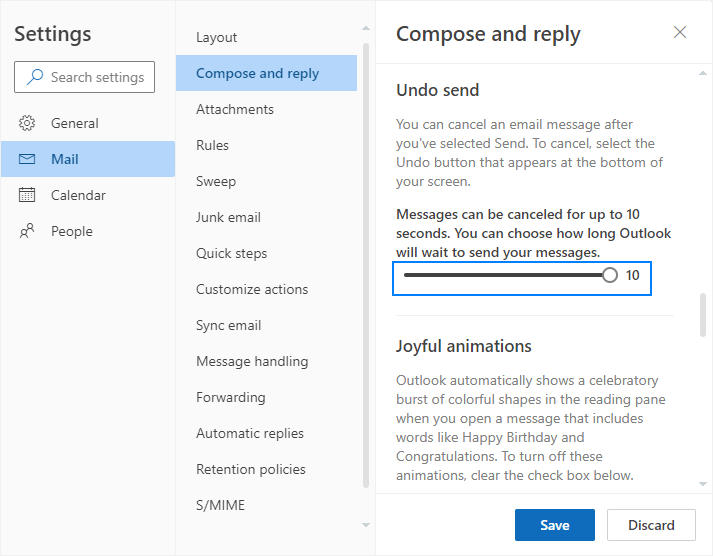
1. Enable Undo Send (Delay Delivery)
- Go to File → Options → Mail → Send messages.
- Set “Undo Send” delay to 30 seconds (or more).
- After clicking Send, you’ll see an Undo button for the set time.
This works for all account types and is far more reliable than recall.
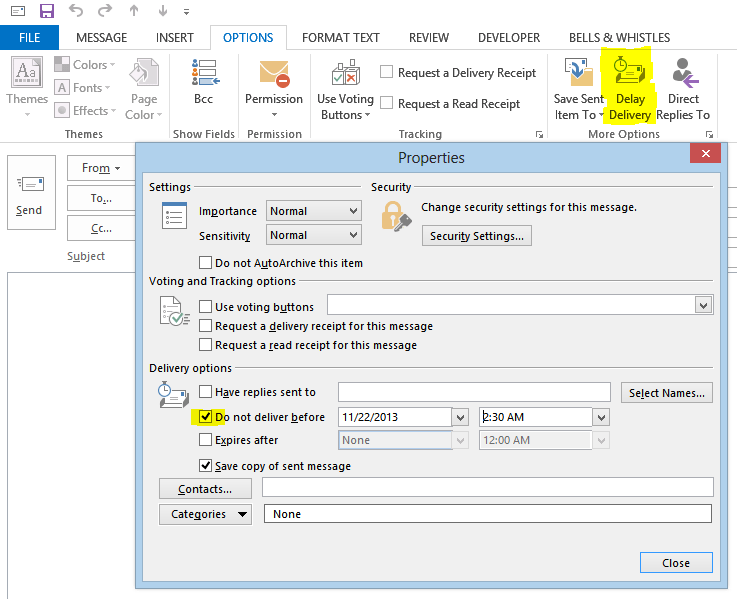
2. Use Delay Delivery for All Emails
Create a rule to delay outgoing messages by a few minutes so you have time to catch mistakes.
3. Send a Follow-Up “Correction” Email
If recall fails:
- Immediately send a polite new email explaining the mistake and providing the correct information.
- Example: “Please disregard my previous email — here is the corrected version…”
4. Double-Check Before Sending
- Use the Bcc field carefully.
- Proofread attachments and recipients.
- Enable Read Receipts or Delivery Receipts for important messages (though these aren’t foolproof).
Frequently Asked Questions (FAQs)
Can I recall an email in Outlook after the recipient has read it?
No. Once opened, recall will not delete the message.
Does email recall work with Gmail recipients?
No. Recall only works within the same Microsoft 365/Exchange organization.
Is there a time limit to recall an email in Outlook?
There is no fixed time limit, but success depends entirely on whether the recipient has read or moved the message.
Can I recall emails in Outlook mobile app?
No. Recall is only available in the desktop versions (Windows/Mac) and limited support in New Outlook/web.
What if recall fails? Will the recipient know?
They may receive a recall notification email, which can highlight your original message.
Final Tips to Avoid Email Disasters
- Always use Undo Send as your first line of defense.
- For critical emails, draft them in the Drafts folder first.
- Consider third-party tools or Microsoft 365 admin features for advanced message revocation (available in some enterprise setups).
- Train yourself to pause before hitting Send — it’s the most effective “recall” method.
By understanding the limitations of Outlook’s recall feature and using preventive habits, you can significantly reduce email mishaps.
If you found this guide helpful, bookmark it for future reference. Have you ever successfully recalled an important email? Share your experience in the comments!